
Introduction
In IBM Sterling OMS, Transfer order is part of inventory management operations. This process facilitates the transfer of inventory from one node to another within the same legal entity.IBM Sterling OMS initiates transfer orders in two primary situations.
- The customer selected a specific store location for order pickup.
- According to the sourcing rule, the designated fulfillment node cannot fulfill the order due to insufficient inventory.
Sterling OMS system initiates two different types of transfer order.
- Procurement Transfer Order
- Replenishment Transfer Order
Procurement Transfer Order
- Sterling IBM OMS automatically generates a “Procurement Transfer Order” during order scheduling, which functions as a chained order tied to the original sales order demand.
- A transfer order is created at the time of sales order scheduling. The sourcing rule designates the ship node, but the scheduling process places the order on backorder when inventory is unavailable.
- The procurement sourcing rule determines the ship node from which inventory will be procured.
- The receiving ship node is identified by the sales order sourcing rule, as it lacks sufficient inventory to fulfill the order.
Replenishment Transfer Order
- Replenishment Transfer order is a kind of internal order with Document Type 0006. Usually this transaction will initiate when a specific node has no inventory or low inventory to fulfill a customer order.
- This transfer will happen from Distribution Center to Store or Store to Store. This process can be manually or automatically triggered whenever inventory replenishment is needed at a particular location.
- The order line specifies the ship node that will be used to procure inventory.
- The order line identifies the receiving ship node, which is responsible for receiving the inventory.
Why Replenishment Transfer Order
When an order is backordered, Sterling OMS triggers a procurement transfer order to source the required inventory. To avoid backorders, replenishment transfer orders can be scheduled in advance to ensure stock availability.
Example
IBM Sterling OMS automatically triggers a transfer order once the inventory of an item at the specified ship node falls below the low threshold.
Steps:
- Configure On-hand Inventory Monitor Rules to track the inventory level of items at specific ship nodes.
- Set up the RTAM agent to publish inventory updates to external systems.
- Configure the Inventory Monitor Agent to monitor stock levels and automatically trigger the creation of a transfer order when on-hand inventory falls below the defined threshold.
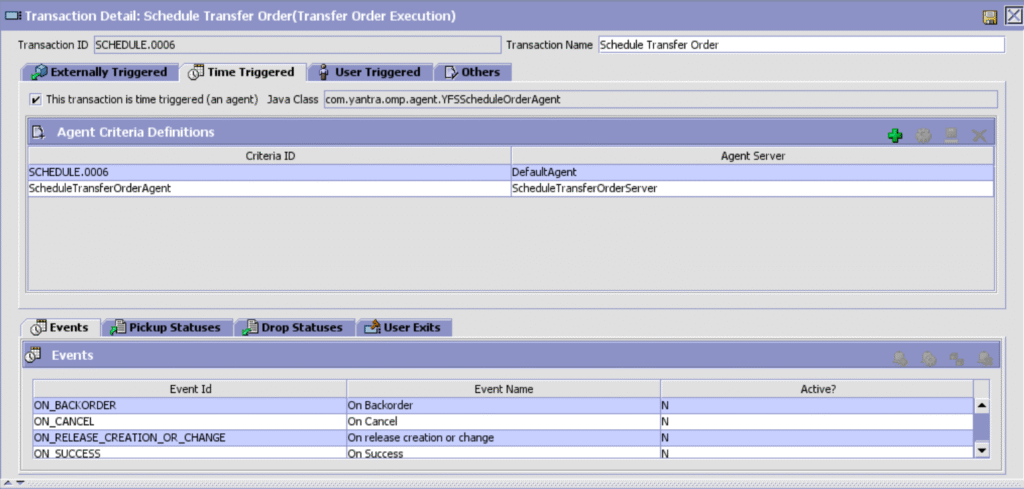
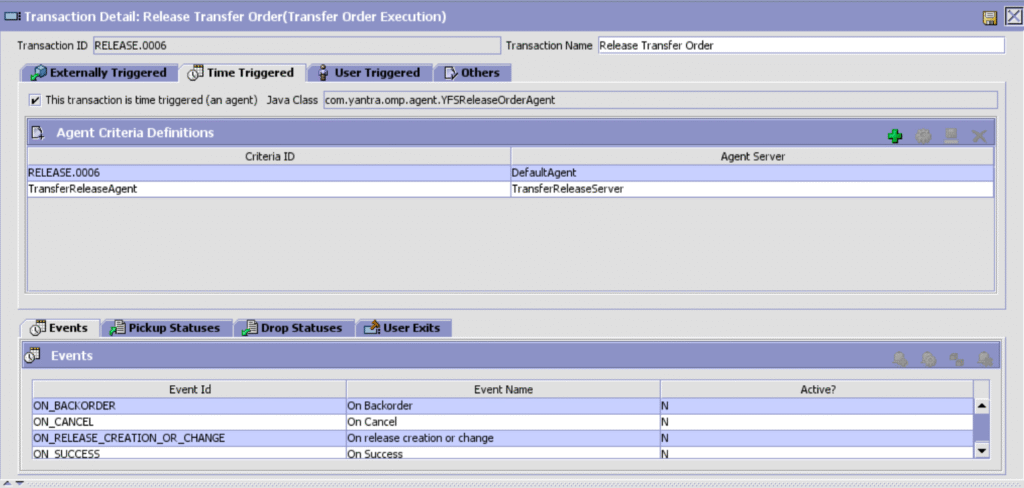
- Set up the Schedule Transfer Order Agent and Release Transfer Order Agent to automatically schedule and release the transfer order.
- Configure On-hand Inventory Monitor Rules
The rule includes an action with custom logic that prepares the transfer order XML and invokes the “createOrder” API to generate the transfer order. The transfer order XML is constructed based on the Inventory Monitor Rule message.
Click – Global Inventory Visibility – > Monitor Rules – > Onhand Inventory Monitor Rules . Click (+) symbol to create a new rule.
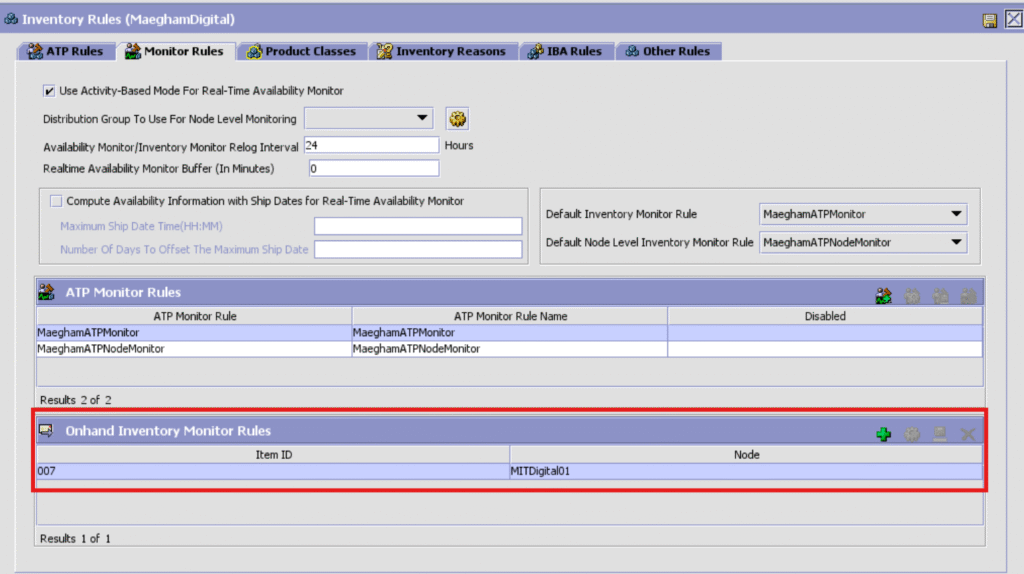
After clicking + symbol the following screen will pop up and provide the required details.
This action is triggered for item 007 at ship node MITDigital01 when the inventory level falls below the threshold of 10.
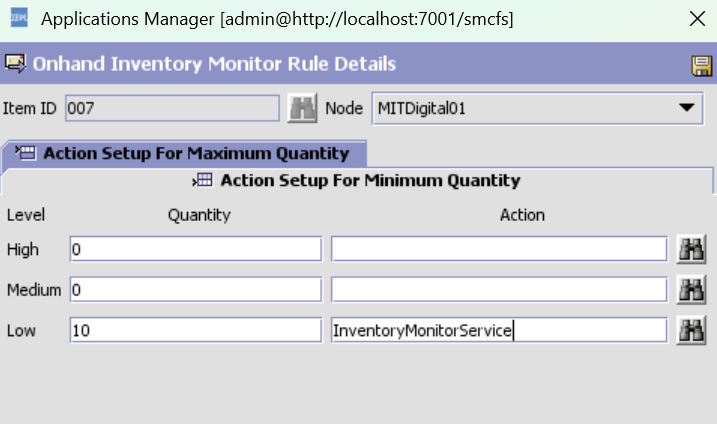
The Inventory Monitor service has Java custom logic to create transfer orders. Transfer order input xml prepared based on inventory monitor message.
Inventory Monitor Message
<YantraXML>
<XML EnterpriseCode=“MaeghamDigital” ItemID=“007” MaximumQty1=“0.0”
MaximumQty2=“0.0” MaximumQty3=“0.0” MinimumQty1=“0.0”
MinimumQty2=“0.0” MinimumQty3=“10.0”
OrganizationCode=“MaeghamDigital” RaisedFor=“MinimumQty3”
ShipNode=“MITDigital01” ShipNodeKey=“MITDigital01”
TotalOnHandShippableQty=“5.0” TransactionId=“INVENTORY_MONITOR”/>
</YantraXML>
- Inventory Monitor Agent
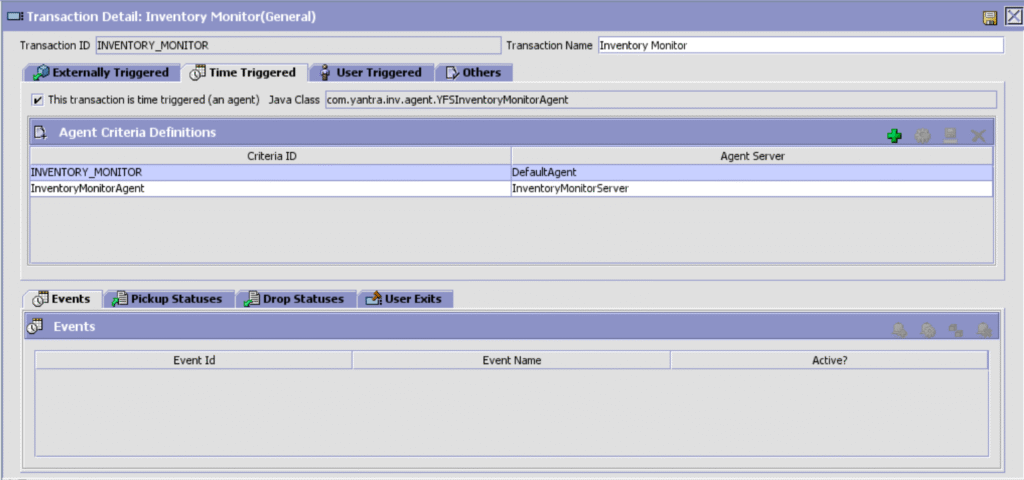
When inventory falls below the threshold, the Inventory Monitor Agent triggers the On-hand Inventory Monitor Rules, which in turn create a transfer order.
Click – General – > Inventory Monitor
- Configure RTAM agent
Click , General – >Real Time Availability Monitor
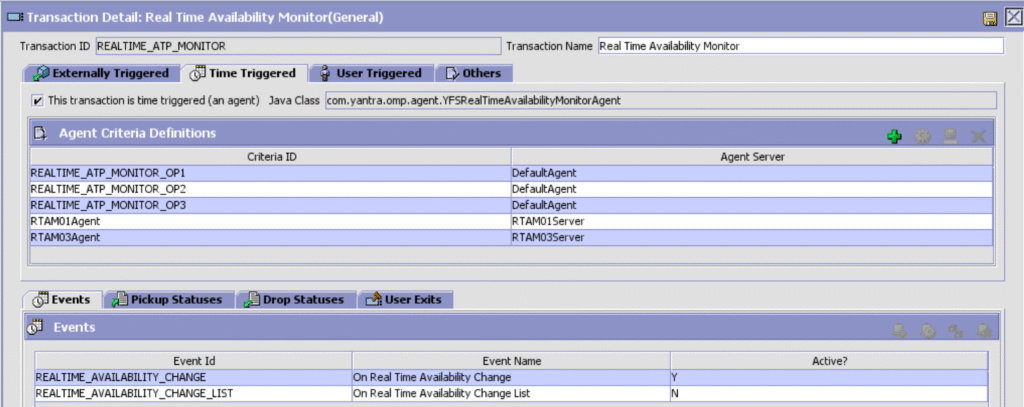
The Inventory Monitor Agent triggers an action based on the inventory details of an item published by the RTAM agent.
- Configure Schedule Transfer Order Agent
Click – Transfer Order(Document Type)->Transfer Order Execution (Process Type) – > Schedule Transfer Order
- Configure Release Transfer Order Agent
Select, Transfer Order(Document Type)->Transfer Order Execution (Process Type) – > ReleaseTransferOrder
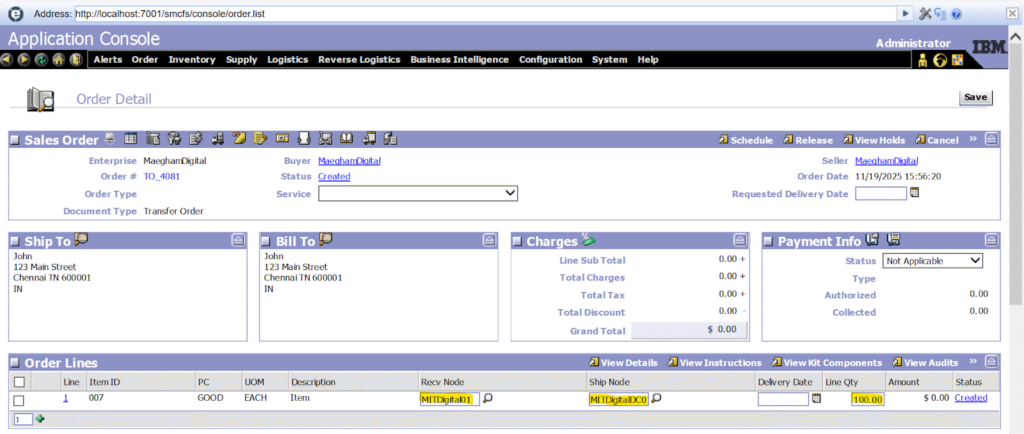
- Once the inventory for item 007 at the specified ship node MITDigital01 falls below the threshold, a transfer order is created. Transfer Order Flow .
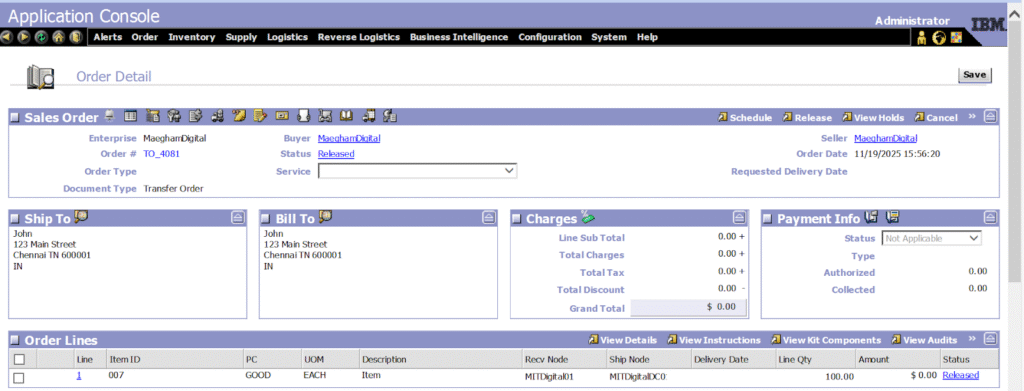
- Transfer order created
Receiving Node – MITDigital01 (passed at order line level)
Ship Node – MITDigitalDC01 (passed at order line level)
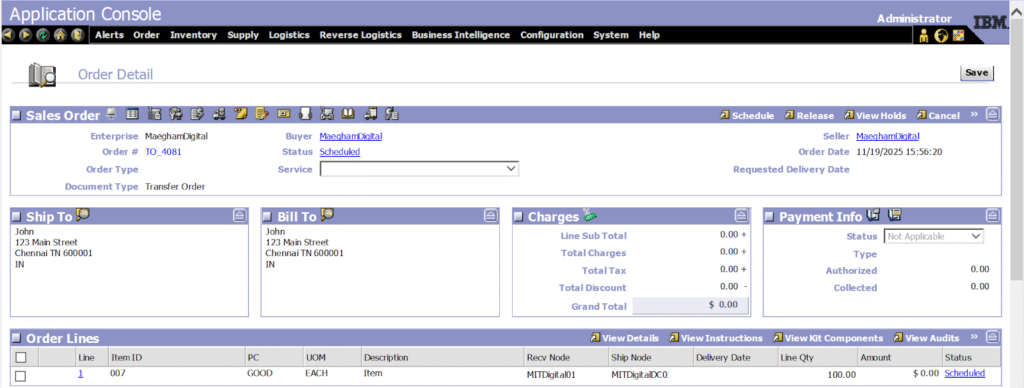
- Transfer order moved to scheduled status
- Transfer order moved to released status
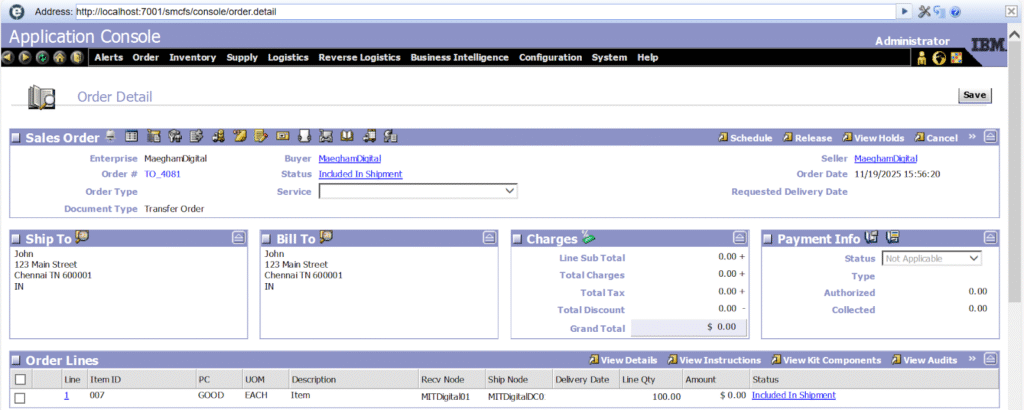
- Shipment created for the transfer order.
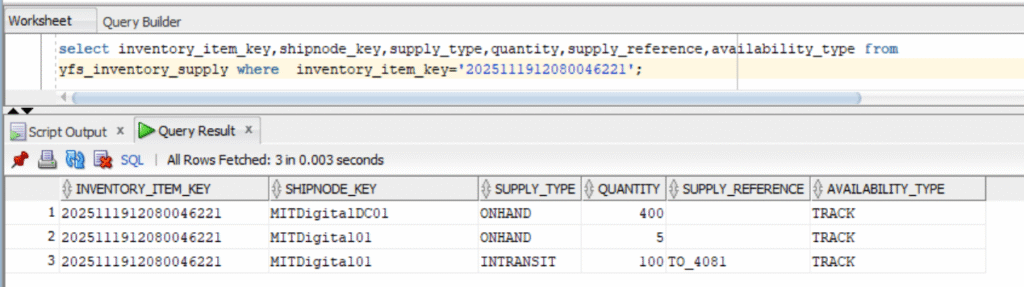
- After Shipment created –“ INTRANSIT “ Supply Type created for 100 quantity for the item 007 for ship node MITDigital01
YFS_INVENTORY_SUPPLY
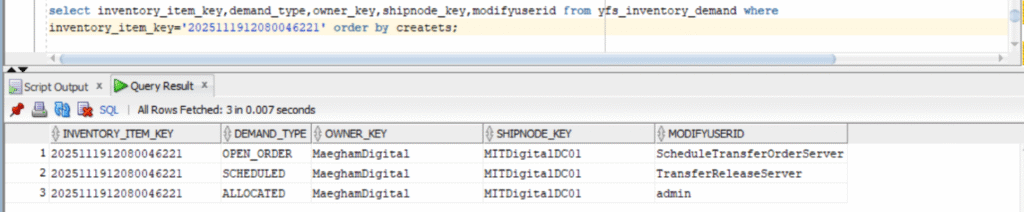
- Demand Table – Demand created for item 007 against the node MITDigitalDC01
YFS_INVENTORY_DEMAND
- Transfer order moved to shipped
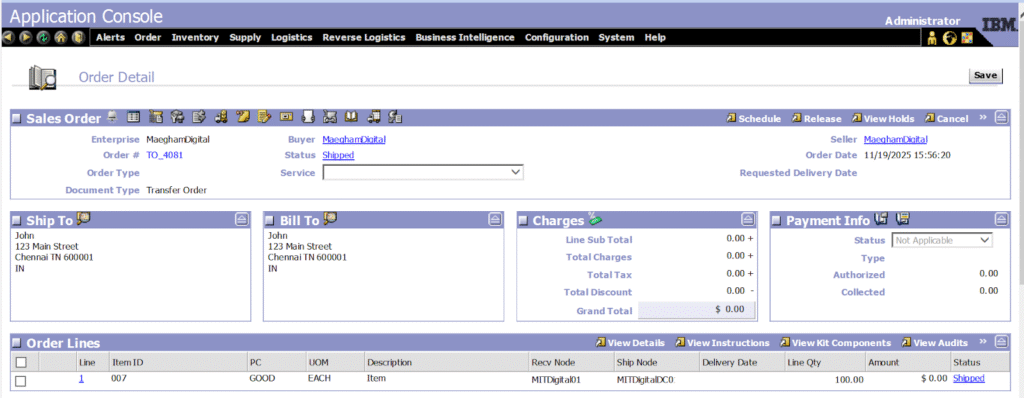
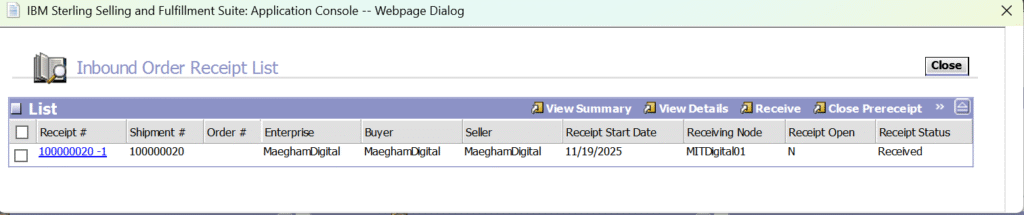
- Initiate Receipt Process
Receipt Status
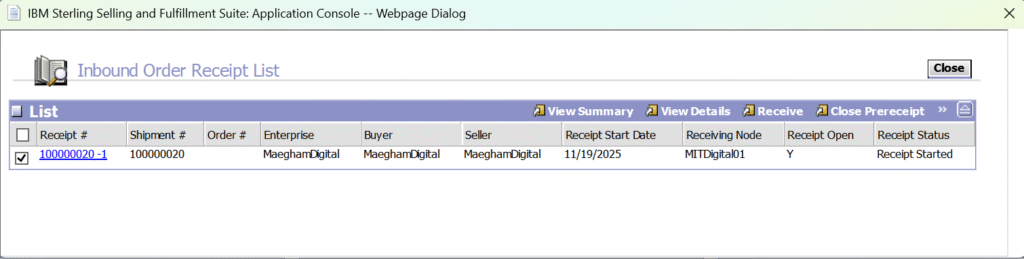
Shipment Status
- Receipt In Progress
Receipt Status
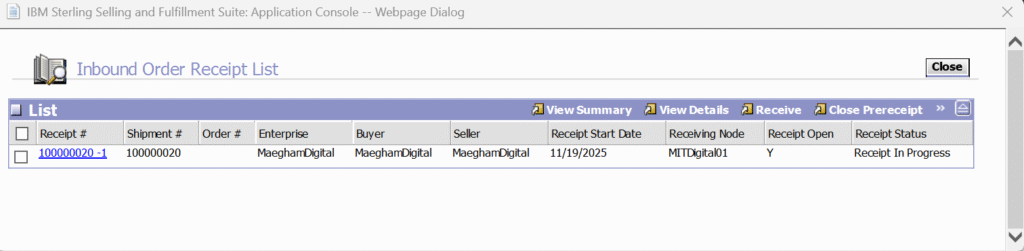
Once product received supply changed from INTRANSIT to ONHAND
YFS_INVENTORY_SUPPLY
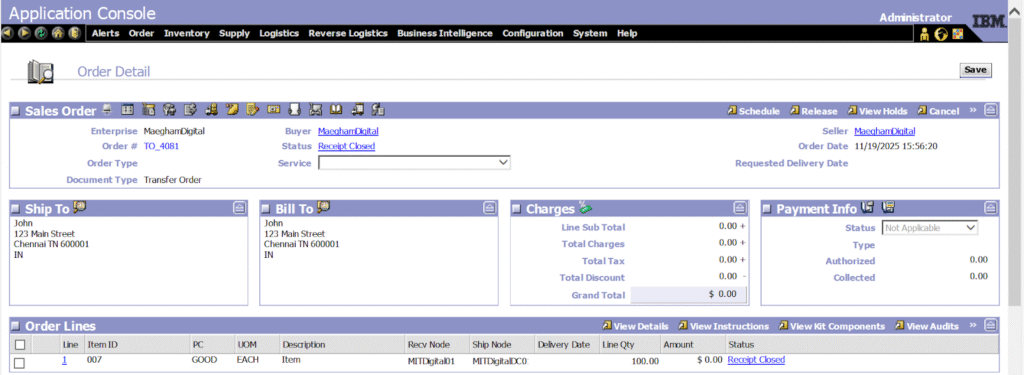
Sales Order Status
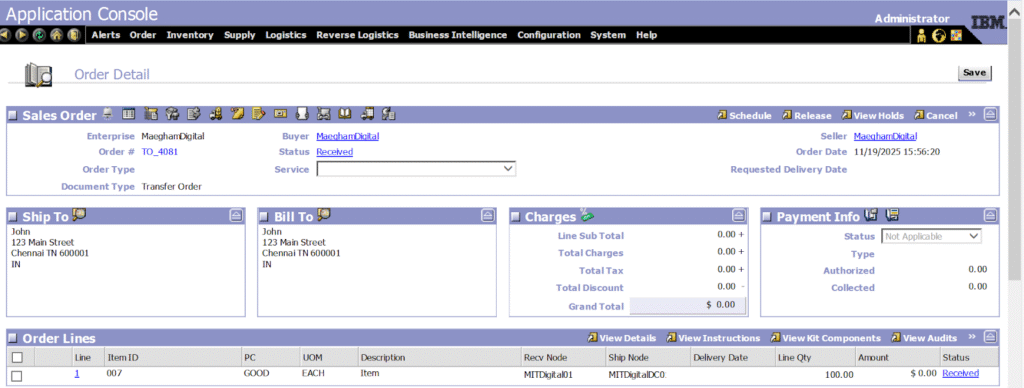
- Receipt Process Closed
Receipt Status
Order Status – Receipt Closed
Conclusion
By leveraging replenishment transfer orders, businesses can ensure inventory is positioned correctly across their network, reduce lost sales from stock-outs, and improve overall order fulfillment efficiency.